Hello everybody,
I’ve put together this script to thank DJTT for the Midi Fighter 3D they gave me as a prize for the previous video competition entry; and give you guys something cool and useful. This script is packed with features like global controls, tempo controls, launching stopping clips, track controls, drum rack and little stuff like master VU meter and blinking metronome. Its based on my previous script for the MF Pro.
More precisely it consits of 4 pages.
Page 1: is the General control page and consists of tempo controls, global play, stop and record and the controls to move around the “red box”
Page 2: is the Clip control page, you have a 4x3 grid and the top row is the stop button for each track.
Page 3: is the Track control page. Each row corresponds to one of the rows inside of the red box. And it consits of Track select, Mut, Arm and Solo.
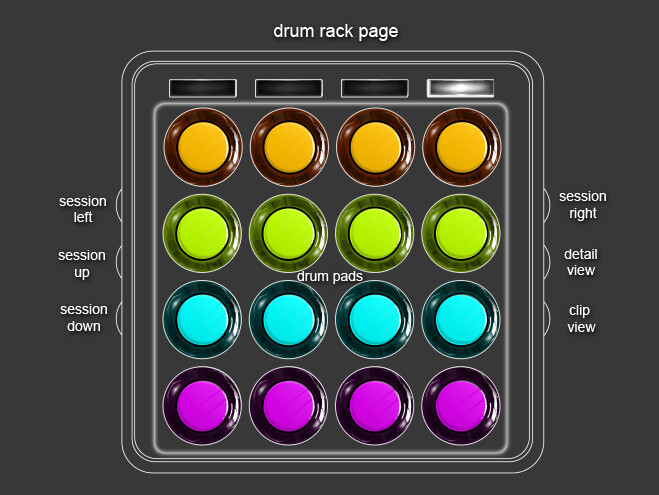
Page 4: is the Drum Rack page. It plays the highlighted 4x4 grid in the drum rack. Make sure that the drum track is Armed and the Track input is On in the Midi preferences page.
Also the tilt Left|Right|Front|Back messages get automatically mapped to the first effect device of the selected track.
Please let me know if you find this useful or have any suggestions or requests!
A lot of this code was inspired by and “borrowed” from Hanz Petrov, Will Marshall and the Livid Framework. Without them this wouldn’t exist.
Here is a video tutorial (currently upload in process)
in your vid @2.10 you are talking about the 4th page. the drum rack. which in order to play it i have to arm the drum track on the 3rd page. can you please give more information where to drag the drumracks exactly? just gave it a try, created 3 more midi tracks and dragged 3 more drumracks into the miditracks in the template, which i can arm via the 3rd page as you described. so far so good.
but the when playing the drums, the your original drumrack #1 is also triggered.
2.) @3.00 / @3.13 you perform kind of an traktor-midifighter-combo-effect pressing the master vu-meter buttons in a combo. how did you do that?
ok. i see. i think i found my answer to my question 1)
i just have to change the monitor in track#1 from “IN” to “AUTO”, drag 3 more drumrack-midi-tracks and “arm” the desired track via page 3. doing this i found out, that at the 3rd page it is possible to arm more than 1 track at the same time. nice.
sorry again for taking such a long time to reply, I’ve been out of country backpacking.
so i made a quick patch to enable a 4x4 grid for those who want it. just follow all the instructions normally first and then add this folder into your MIDI Remote Scripts folder http://tomashg.com/MF3D_Launcher_4x4.rar
now for your last question I’m not quite sure what you mean, can you be more specific?
I posted this on Tomash’s FB but thought I would repost for any python ninjas looking for ideas
Tomash- a couple of ideas:
for people like me who are using the mf3d as a replacement for a launchpad, it would be nice to have a “clip heavy” version where lets say bank buttons 1/2 toggle the red box up/down 16 clips and 3/4 send it 16 clips left/right…or some variant thereof. I don’t need any ableton controls for the most part but you could do a half-in-half instead that keeps bank buttons 1/2 as general/clip mode and have 3/4 as move 16 clips up/down.
As it stands now, the ability to auto-assign motion controls to the active rack is awesome but it would be nice if it didnt automatically switch to drum rack mode when you use it. I toggle my motion fx racks on/active with buttons on another controller and would love it if the mf stayed in clip mode when doing so.
As I noted in the forum, Im using the clip view side button to toggle on/off a specific VST that uses motion. It overrides then clip view function when midi mapped, but it is set to toggle. It would be nice if it was set to gate instead as there is no way to tell if toggle state is on or off.
I know what you’re thinking…I need to learn Python haha.
Thanks again for your time and effort, I look forward to seeing this script evolve and hope this gives you some ideas!
Hey man! Thanks for the contribution of ideas!
You have a pretty good point, actually at first I had it implemented that way, to skip 4 clips down each time. You don’t really have to learn Python Just open the MIDI_Map.py file and assign MIDI values to ZOOMUP, ZOOMDOWN, etc. and it will move around by 4 clips. Also to totally disable the Clip View button mapping just set CLIPTRACKVIEW to = -1. Now to change the kind of MIDI messages the button sends you have to take a look the MIDI Fighter Utility settings. I’m not exactly sure if the side buttons can send CCs just like the arcade buttons for momentary functionality (correct me if I’m wrong).
Hmmm, I think the drum rack would sit better on the first page as it is triggers the same midi values as the first page. In reality there was no actual need to map it in the script now that I think of it… Anyway, you can un-assign almost any element simply by editing the MIDI_Map.py configuration file!
I made a small mistake in the script and it did not use the MIDI_Map.py file for all of the controls, so if you wanted to change some things it didn’t work. The latest update can be found here http://tomashg.com/MF3D_Launcher_4x4.rar
The changes are simple but sweet if you only want to use the MF3D for triggering clips and motion fx.
This version does away with the 4 banks… clip page is all that’s used, banks 1&2 buttons are free to assign (good for toggling on/active motion fx racks) and banks 3&4 buttons are set to jump the red box up/down 4 rows at a time respectively. Side buttons still work as originally implemented except L2 and L3 are now also free for mapping elsewhere.
I’ve also included my .mfs file that will make empty clip slots be unlit. Since empty spaces are the only way to mark placement without looking at yr screen I figured it would be better to make them distraction-free. Also set default stopped clip color to red because its sexy and wont contribute to bleached-out laptop face when performing
The only leftover issue is that setting the bank buttons to Toggle is better for keeping track of which rack is turned on (b1&2) but makes the zoom buttons (b3&4) have to be clicked twice in order to move. I’m still trying out both ways but the .mfs file is set to Hold for the time being.
A million thanks to Tomash for his patience and real-time tech help, its been a great learning experience!!
Would it be a way of making the clip colours on bank 2, to match the colours of the actual clips in Live? Or would that be too much to ask at the moment?
the clip buttons color is set depending on the state of the clip (ie if it is armed, playing, or cued), you could change those colors for each state yourself, but they would apply to all clip buttons. I think there is a way to retrieve the clip colors from Live’s API but that would require rewriting the Button and probably Scene classes.
I might take a look out of curiosity when I find some time.
That´d be dope dude. It´d be great to be able to set different colour for the individual clips… so at one glance, you can tell which ones are your vocals, your one shots, etc!
Yeah actually it is a pretty cool idea! Though there are some technical limitations with the MF3D as well, unfortunately you cannot set directly full RGB color with the MIDI messages, so it is limited to the 20 predefined colors + 15 steps of the active and inactive colors. Plus find some way to differentiate a playing track from a green track.
But still a pretty cool idea, thanks for sharing!
 This script is packed with features like global controls, tempo controls, launching stopping clips, track controls, drum rack and little stuff like master VU meter and blinking metronome.
  Its based on my previous script for the MF Pro.


 I’m glad you like it!