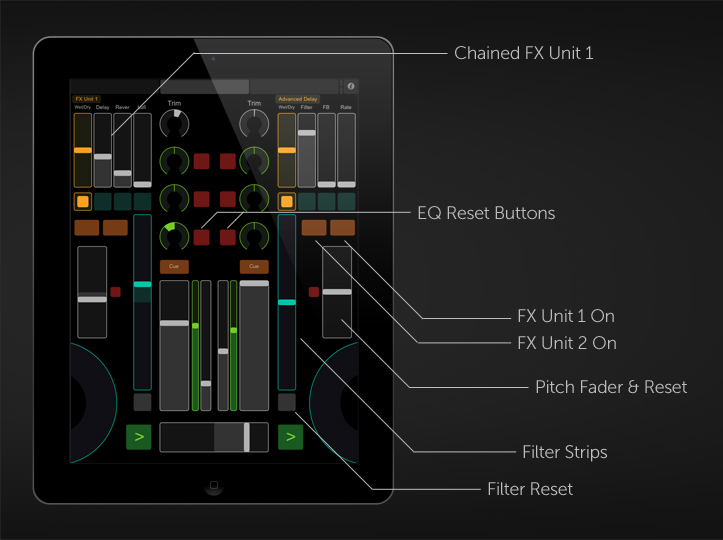
TouchOSC iPad layout for Traktor Pro/Pro 2 - CDJ-1000 inspired
Hello all, thought I would share my latest creation, a 3-page TouchOSC layout emulating two CDJs and a mixer. This is a great mobile setup for parties, and I would love to see someone make use of it with multiple iPads even.
Main Features:
-Large Encoders (Jog Wheels) for smooth track control
-6 hotcues - twice as many as a real CDJ, catering more to Traktor
-3 TouchOSC Pages - Left Deck, Mixer, Right Deck
-MIDI-Out mapped to volume (Both AFL & PFL for accurate levels)
-MIDI-Out for filter levels, EQ levels, pitch faders and crossfader
-Reset buttons for filters and EQ (including visual feedback of ‘snapping’ to 0)
-Long faders for precise filter control
-Sync button on decks
-Jog mode button (toggles Snap)
-Tempo Reset & Pitch Faders on deck pages as well as the mixer page for continuous control on a single iPad
-Secondary encoders on mixer page to nudge tracks while EQing/Using FX
Download the .zip containing the TouchOSC map, Traktor .tsi and OSCulator file.
Sync TouchOSC Layout to your iPad using the TouchOSC Editor, it will display as “CDJ1000”
Open Traktor, import the .tsi via the Controller Manager.
From your Macbook, click the wireless icon and select “Create Network” - name it whatever you want, password is optional. Connect your iPad to this network (You may notice it takes a few extra seconds to connect, but it will, be patient)
Open the OSCulator file, and once it is running open Traktor and make sure your midi routing is set correctly (Usually it just says Osculator-in and Osculator-out).
Open TouchOSC, connect to your host (OSCulator will pop up in the TouchOSC menu with your computer’s name) and make sure the green lights are firing in OSCulator, signaling a connection between TouchOSC and OSCulator. You should now be able to control Traktor with your iPad.
PLEASE NOTE: I will not answer any questions about setting this up on a Windows laptop, it’s not easy and it’s not going to work as well, no matter what. Accept it.
ALSO NOTE: I’m not going to offer support for this mapping unless it’s an easy and valid question, I expect the users to have at least intermediate experience with this technology.
Thanks! Yes it did take some dedication, a lot of repetitive MIDI assignment, and a lot of mapping - but I’d say it was worth the effort, it’s very useful.
hi thanks for the mapping it looks very cool , I have used touch osc before so know how to set it up . I have followed all the steps but when I use the iPad nothing on traktor works none of the controls operate anything on traktor , the midi setup sees the iPad and appears to be connected but the blue ctrl light doesn’t light when the iPad is used.
Sounds like you’re using the Audio MIDI Setup option, I didn’t set these controls to default MIDI, so they route OSC signals through OSCulator which then converts them to MIDI.
If you’d like,you can open the TouchOSC layout file in the editor and change each control to MIDI, but keep in mind a total re-mapping will be needed within Traktor.
Downloaded OSCulator and it seems to connect but I still can’t control traktor from the Ipad , the only thing I see is in tractor preferences are the OSCin is listed in the out port and OSCout is in the in port . When i have osculator open and i move something on the iPad it shows up on osculator but with a yellow square . thanks neil
Any help anyone been trying again today iPad see the laptop but nothing working , as said the OSCin is listed in the out port of traktor and OSCout is in the in port , i don’t know if this is right or not . In osculator every action is being shown as a yellow square so no action happening in traktor.
Hi guys, thanks for this awesome patch. Im not the most technological advanced person out there but somehow I have managed to get it to work on my traktor 2 s4 setup. Every feature on the ipad seems to be working with the exception of the “play” button. Does anyone have any easy to follow fix? Much appreciated
If you look in OSCulator at which value lights up when you press the play/pause button, you can figure out which MIDI CC value it’s attached to. Then open Controller Manager, find the mappings for “Play/Pause” in the list, and verify it’s correct. Otherwise, you can hit learn, and then tap the play/pause button to map it like any other controller.
If you can figure out how to transmit a wireless signal FROM a PC laptop, and then re-map every MIDI in and output, then you might have a chance. Hence why I put the “Please Note:” at the bottom.
The advantage of Macbook/Macbook Pro models is their ability to create a wireless network, thus minimizing any risk of latency and downtime. So yes, it is probably possible on Win7 but it would be easier to sell your body and buy CDJs (or a Macbook).
Well, there is the option now to get the TuchOsC MIDI router, not sure how it compares to OSCulator…who knows, I might make a CoreMIDI one, but that might have to cost a couple bucks for the extra work…only time will tell…